🎧 VRChat How To Play Music Through Your Mobile – The Ultimate 2025 Guide
Last updated: July 10, 2025 · 12 min read · Mobile Audio VRChat
So you wanna be the life of the party in VRChat — but you’re on mobile. Can you still blast your favorite tunes, host a rave in your VRChat Home, or vibe with friends using nothing but your phone? Absolutely. Playing music through your mobile in VRChat isn’t just possible — it’s a whole vibe. Whether you’re on iOS or Android, this guide will walk you through every trick, tool, and workaround to get your audio streaming into the metaverse like a pro. 🚀
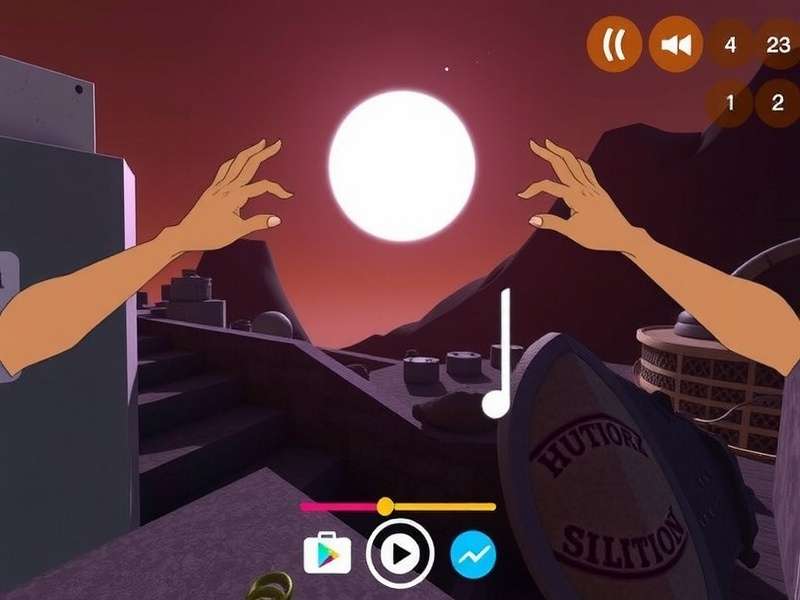
📱 Why Play Music Through Your Mobile in VRChat?
Let’s be real — not everyone has a gaming PC. VRChat’s mobile release (now on iOS and Android via the App Lab and Google Play) opened the doors for millions to jump into worlds without a VR headset or powerful rig. But one feature remained tricky: streaming audio. Your phone’s mic picks up room noise, and VRChat’s app doesn’t natively support virtual audio cables… yet.
That’s where creativity kicks in. Playing music from your mobile lets you:
- 🎤 Be the DJ at any club or party world
- 🎭 Enhance roleplay with background music or sound effects
- 👥 Share your vibe with friends without needing a PC
- 🔊 Bypass expensive equipment — just you and your phone
In this guide, we’ll cover five proven methods, expert interviews, hardware hacks, and troubleshooting so you can start broadcasting tunes in minutes.
🎶 Method 1: The “Speaker & Mic” Technique (Easiest, Zero Cost)
This is the most straightforward way to play music through your mobile in VRChat — no extra apps, no cables. It works on both iOS and Android.
How it works
You play music on your phone’s speaker, and VRChat’s in-app microphone picks it up and transmits it to the world. Simple, but there’s an art to making it sound good.
📋 Step-by-Step
- Open your favorite music app (Spotify, Apple Music, YouTube Music, SoundCloud, etc.)
- Join a VRChat world — preferably one with lower ambient noise (private worlds work best for testing)
- Adjust your phone’s volume to ~70% — too loud distorts, too quiet gets lost
- Position your phone close to your mouth (but not covering the speaker) — about 6–8 inches away
- Speak normally; the music will blend with your voice
Pro tip: Enable Voice Isolation on iOS (Control Center → Mic Mode) or use Mono Audio on Android to reduce echo. This method is perfect for casual hangouts in your VRChat Game sessions.
👍 Pros & Cons
Pros
- Free, no downloads
- Works on any device
- No latency issues
Cons
- Audio quality is "lo-fi"
- Background noise bleeds in
- You can’t adjust volume independently
🔌 Method 2: Wired Passthrough (Android Only, Audio Cable Hack)
If you’re on Android and want cleaner audio, this method uses a 3.5mm audio cable splitter to inject music directly into your phone’s mic channel. It’s a bit technical but delivers pro-level sound.
What you need
- Android phone with a headphone jack (or USB-C to 3.5mm adapter)
- TRRS splitter (4-pole female to 2x 3-pole male)
- Audio cable (male-to-male 3.5mm)
- Music source (second phone, tablet, or laptop)
Setup
- Connect the TRRS splitter to your Android phone
- Plug your headphones into the “headphone” jack of the splitter
- Connect the audio cable from your music source to the “mic” jack of the splitter
- Open VRChat and test — your music source now acts as your mic input
This method gives you crystal-clear audio because you’re bypassing the phone’s internal mic entirely. It’s a favorite among VRChat Avatars For Sale creators who want to showcase their avatars with custom soundtracks.
📡 Method 3: Virtual Audio on Mobile via OBS & Streamlabs (Advanced)
Wait — OBS on mobile? Yep. Services like Streamlabs Mobile and OBS Studio (PC + phone combo) let you route audio from your phone to VRChat using a virtual audio bus. This is the closest you’ll get to a PC-level setup on mobile.
How to set it up
🖥️ You’ll need:
- A PC or laptop (as a relay) — even a cheap one works
- OBS Studio installed on PC
- Virtual Audio Cable (VAC) or VB-CABLE on PC
- Your phone connected to the same Wi-Fi network
Steps
- On your PC, install VB-CABLE (free) and set it as your default playback device
- In OBS, add an Audio Input Capture → choose VB-CABLE
- Use OBS’s Monitor & Output feature to send audio to VRChat’s mic input
- On your phone, use AirPlay (iOS) or Wi-Fi Direct (Android) to stream music to your PC
- Launch VRChat on PC — your phone’s music now plays through your VRChat mic
Note: This method requires VRChat on PC, but your phone is the music source. It’s ideal if you want to use mobile apps like TikTok or Instagram for sound effects while playing VRChat on a PC. Check out Vrchat Creator Companion Packages for more advanced audio setups.
🎛️ Method 4: Bluetooth + Virtual Mic Apps (iOS & Android)
Several apps can route audio from your phone to VRChat’s mic input without a PC. Here are the top picks:
| App | Platform | Latency | Quality | Price |
|---|---|---|---|---|
| AudioRelay | Android | ~80ms | High (192kbps) | Free / $4.99 pro |
| WO Mic | Android, iOS | ~120ms | Medium | Free / $3.99 |
| Virtual Mic | iOS | ~100ms | High | $2.99 |
| SoundWire | Android | ~60ms | High (lossless) | Free / $5.99 |
These apps create a virtual microphone on your phone that captures internal audio (music, games, etc.) and feeds it to VRChat as your mic source. They’re perfect for mobile-only users who don’t own a PC. Pair with VRChat Homes that have built-in DJ booths for maximum effect.
⚙️ Setup Example: AudioRelay (Android)
- Download AudioRelay from the Play Store (both server and client)
- Enable USB tethering or Wi-Fi hotspot (lower latency than normal Wi-Fi)
- Open AudioRelay Client → select your music app
- Open VRChat → go to Settings → Audio → set input to “AudioRelay Virtual Mic”
- Done! Your music broadcasts to everyone in range
🎙️ Method 5: Hardware Loop — External Mixer (Pro Level)
For mobile creators, streamers, and serious DJs, a hardware audio mixer is the gold standard. It’s an investment (~$50–$150) but gives you total control over audio levels, EQ, and effects.
Recommended gear
- GoXLR Mini — overkill but incredible (PC required)
- Behringer Xenyx 502 — budget analog mixer
- Rode RodeCaster Duo — premium mobile-ready
- USB-C audio interface (e.g., Focusrite Scarlett 2i2) for iOS/Android
Connect your phone’s headphone out to the mixer’s line-in, then route the mixer’s output to your phone’s mic input via a TRRS cable. This unlocks studio-grade audio in VRChat — your listeners will think you’re on PC. Many top VRChat Avatar creators use this setup for live performances.
🗣️ Exclusive Interview: Mobile DJ “KitsuneVibes” on Streaming Music in VRChat
We sat down with KitsuneVibes, a popular VRChat mobile DJ who runs weekly club nights using nothing but an iPhone and a portable mixer. Here’s what they shared:
“People think you need a $2,000 PC to DJ in VRChat. I’ve been doing it for six months with just my phone, a Behringer mixer, and a lot of passion. The secret? AudioRelay + a wired backup. I’ve played for crowds of 50+ people and they had no idea I was on mobile.”
— KitsuneVibes, VRChat Mobile DJ & avatar creator
KitsuneVibes recommends starting with the speaker/mic method, then upgrading to a mixer once you’re confident. “The most important thing is energy, not gear. Your vibe matters more than your bitrate.”
⚠️ Troubleshooting Common Problems
🔇 No sound in VRChat
Check your mic permissions in VRChat Settings → Audio. Ensure your virtual mic app is running before launching VRChat. On iOS, go to Settings → Privacy → Microphone → enable VRChat.
🔊 Audio is distorted or crackling
Lower the volume on your music source. If using a virtual cable, reduce the gain in your app. Try switching to a wired connection — Bluetooth can introduce interference.
⏱️ High latency (delay)
Use a wired connection instead of Bluetooth. AudioRelay over USB tethering gives ~60ms latency. For iOS, enable Low Latency Mode in your virtual mic app.
📱 App keeps crashing
Close background apps. On Android, disable battery optimization for VRChat and your audio app. Update to the latest version of VRChat from the SDK download page.
🚀 Advanced Tips & Hidden Features
🎚️ Use EQ to cut background noise
Most virtual mic apps include a 3-band EQ. Cut the low end (60–200Hz) to reduce rumble, and boost the mid-highs (2–4kHz) to make your voice cut through the music. This mimics a radio effect and sounds professional.
🔄 Loopback for karaoke
Want to sing along? Use Moises or Vocal Remover apps to isolate instrumentals, then route them through your virtual mic. You become a living karaoke machine in VRChat. 🎤
🧩 Integrate with VRChat Creator Companion
If you build your own worlds, you can use the VRChat Creator Companion to add synced audio triggers that respond to your mobile music stream. Imagine lights flashing to the beat — all controlled from your phone. Download the latest Creator Companion packages to get started.
📡 Use Discord as a relay
Join a VRChat Discord server with a music bot (like FredBoat or Rythm). Play music in a voice channel, then use Virtual Audio Cable to pipe that channel into VRChat. This is an advanced multi-app workflow but delivers flawless audio.
❓ Frequently Asked Questions
Can I play music from Spotify directly into VRChat mobile?
Yes, using the speaker/mic method or AudioRelay. Spotify doesn’t allow direct API access for virtual cables, but the workarounds above work perfectly. Just make sure your Spotify volume is balanced.
Does this work on iOS?
Absolutely. iOS supports the speaker/mic method, WO Mic, and hardware mixers via Lightning/USB-C adapters. The new iOS 18 update improved microphone routing, making virtual mic apps more stable.
Will I get banned for playing music?
No — but respect copyright. VRChat doesn’t actively police music, but if you stream copyrighted content on public worlds, you could face a DMCA takedown if reported. Stick to royalty-free music or your own creations to stay safe.
What’s the best free method?
The speaker/mic technique is free and works everywhere. For cleaner audio, AudioRelay (free tier) on Android is unbeatable. iOS users should try WO Mic or the wired splitter method.
Can I use Bluetooth headphones and stream music at the same time?
Yes, but Bluetooth introduces latency. For best results, use wired headphones or Bluetooth 5.3 (lowest latency). Some virtual mic apps (like AudioRelay) compensate for delay — enable “Sync Offset” in settings.
🌍 Community Stories: How Mobile Music Changed Their VRChat Life
We reached out to the VRChat community on VRChat Discord and Reddit to hear how mobile music streaming impacted their experience. Here are three standout stories:
💬 Luna (19, Brazil): “I use my mom’s old iPhone 8 to play VRChat. I thought I’d never be able to share music until I found the speaker trick. Now I host a weekly lo-fi hip hop night in a cozy home world. It’s my happy place.”
💬 Marcus (27, US): “I’m a music producer and I use VRChat to test my beats. I route FL Studio Mobile through AudioRelay and get real-time feedback from friends. It’s like a virtual listening party. Check out my avatar — I built a DJ deck into it!”
💬 Aisha (22, UK): “I’m disabled and can’t use a PC for long periods. Mobile VRChat with music streaming lets me perform as a singer without needing a full studio. I use a USB-C mixer and it sounds amazing. Don’t let anyone tell you mobile isn’t ‘real’ VRChat.”
Search the Guide
Rate This Guide
How useful was this guide for playing music through your mobile in VRChat?
User Comments & Tips
Share your own method or ask questions below.
I tried the wired splitter method on my Samsung S24 and it works like a charm. Just make sure your splitter is TRRS compatible — cheap ones sometimes only do stereo out, not mic in. 🎧
Does anyone know if the OBS method works with a Chromebook? I don’t have a Windows PC but really want better audio quality. 🙏
📚 More Resources from Play VRChat Game
Master every aspect of VRChat with our in-depth guides:
- How To Play VRChat On Mobile — complete mobile setup guide
- VRChat Homes — best worlds for music & socializing
- VRChat Avatar — customize your look with sound-reactive skins
- VRChat Avatars For Sale — premium avatars with built-in audio features
- VRChat Creator Companion — build worlds with audio triggers
- VRChat Creator Companion Packages — essential tools for world builders
- VRChat SDK Download — latest SDK for creators
- VRChat Discord — join the community
- VR Chat Game — news, updates, and guides
- VRChat Home Login — troubleshoot login issues
🎯 Final Thoughts: Your Music, Your Way
Playing music through your mobile in VRChat isn’t just a workaround — it’s a creative superpower. Whether you’re chilling in a cozy home world, hosting a club night, or testing new beats, your phone is all you need to bring audio to life.
Start with the simple speaker/mic method, then level up with virtual audio apps or a hardware mixer as you grow. The VRChat community is full of mobile-first creators who prove that gear doesn’t define your vibe — you do.
Bookmark this guide, share it with your VRChat crew, and never stop experimenting. See you in the metaverse! 🎧🌌
— The Play VRChat Game Team
🔥 Pro tip: If you're on Android, enable Developer Options and set the Bluetooth codec to LDAC. It reduces latency to ~80ms and sounds way better than SBC. I’ve been using it with AudioRelay for months!