How To Make Vrchat Avatars: The Complete Creator’s Deep Dive
Last updated: February 17, 2026 | By the VRChat Game Editorial Team
If you've ever asked yourself “How To Make Vrchat Avatars” and ended up stuck in a rabbit hole of conflicting tutorials, this is your ultimate manual. From Unity project setup and Blender modeling to Avatar Dynamics, toggles, toon shaders, and the hardest performance triage tricks, we’ll cover everything — with the kinda real-world nuance that only a thousand hours in the VRChat creator meta can teach you. 🇺🇸 No fluff, no gatekeeping, just local pro-level knowledge.
Table of Contents
- Why Make Your Own VRChat Avatar?
- Core VRChat Avatar Concepts
- Setting Up Unity + VRChat Creator Companion
- Modeling: Blender, Kitbashing & Retopology
- Avatars 3.0: The Real Magic
- Materials, Textures & Shader Ecosystem
- Performance Ranks: The Unspoken Science
- Troubleshooting Common Avatar Creation Hell
- Showcasing Your Avatar & Community Culture
- Frequently Asked Questions
1️⃣ Why Make Your Own VRChat Avatar?
Let’s face it: nothing screams “I’m a tourist” like rolling into the Great Pug with a default robot avatar. Making your own VRChat avatar is a rite of passage. It’s how you unlock your digital identity in the social VR universe. Sure, you can buy assets, but building your own pipeline means you understand every bone, constraint, blend shape, and material behind your avi.
I’ve been hanging around VRChat since 2020 and seen the avatar creation space evolve from barely-functional Unity 2018 packages to the polished, dynamic, full-fledged Avatars 3.0 ecosystem we have today. And the coolest part? The tools are now more accessible than ever — even from a VRChat Client on PC or mobile, almost anyone can get started.
This guide is built like a pyramid. Start at the base: conceptual knowledge. Then work your way up to Unity, SDK, rigging, and advanced optimization. Pay attention, and in a weekend you’ll have an avatar that turns heads — in a good way.
“The best VRChat avatars are not the ones with 20,000 polys. They’re the ones with soul, smart toggles, and flawless frame times.”
2️⃣ Core VRChat Avatar Concepts You Must Internalize
Before you dive into Unity and Blender, let’s nail down the high-level building blocks. Avatar creation is controlled by a few non-negotiable constraints:
- Rig Type: Humanoid (recommended) vs. Generic. For VRChat, humanoid is the key to gestures, tracking, and avatar dynamics.
- Polycount & Texture Budget: Everything impacts download size, memory, and performance rank.
- Blend Shapes (Visemes): Required for mouth movement and perfect lip sync.
- Physics: Dynamic bones (legacy) or VRPhysB / Avatar Dynamics (current). Used for hair, tails, boobs, floppy ears — all the juicy movement.
- Animation Controllers: This is the brain of your avatar. It drives expressions, toggles, gestures, and emotes.
Humanoid vs Generic? Don’t Mess This Up.
If you plan to have hand tracking, eye tracking, or any standard VRChat social features, always configure your rig as Humanoid. Generic avatars have niche uses, but for 90% of creators, humanoid is the way. Your armature needs properly named bones (hips, chest, shoulders, arms, hands, head, legs, feet). If you’re using an asset ripped from a game, it might not map correctly; you’ll need to fix the bone structure in Blender or Unity.
Also, understanding the VRChat Creator Companion (VCC) is essential. This tool controls Unity project versions, package installation, and SDK updates. For Mac users, there’s a specialized setup guide: Vrchat Creator Companion Mac — because yes, us Mac folks can make avatars too! Just don’t expect crazy-heavy GPU baking on an Intel model. 😅
3️⃣ Setting Up Unity + VRChat Creator Companion
3.1. Choose the Right Unity Version
VRChat’s SDK historically works with specific Unity editor versions. With VCC, you no longer need to manually hunt for the right Unity version; the VCC can install a compatible version for you. For the latest projects, Unity 2022.3 is the golden path for most builds, but if you’re working with older avatars, you might need 2019.4. The VCC handles these configurations elegantly.
3.2. Install VCC and VRChat SDK
- Download the VRChat Creator Companion from the official website.
- Create a new avatar project.
- Click “Get Started” and let the VCC install Unity locally.
- Open the project in Unity using the VCC’s button.
- Inside Unity, use the “VRChat SDK” menu to open the Control Panel.
💡 Pro Tip: Always use a dedicated project for each avatar or at least keep your packages tidy. Mixing SDK3 and SDK2 in one project is a recipe for misery.
3.3. My First Avatar Build — Base Setup Checklist
- ✔️ Unity project opened
- ✔️ VRChat SDK3 Avatars imported
- ✔️ Avatar imported as FBX
- ✔️ Rig set to Humanoid
- ✔️ Materials assigned (Standard or Toon)
- ✔️ Animator component set to “VRChat Avatar Descriptor” ready
After adding the VRCAvatarDescriptor to your root object, you can configure lip sync, eye look, and collision detectors. This is also where you can access your Vrchat Homepage to grab your user ID or promote your world, but that’s part of a later story.
4️⃣ Modeling: Blender, Kitbashing & Retopology
You’ve heard the phrase “you don’t have to be an artist to make VRChat avatars.” That’s half true. If you’re buying pre-made models, you can exist entirely in Unity. But if you actually want to know how to make VRChat avatars well — from proportions to custom geometry — then Blender is your bff.
4.1. Blender Setup for VTubers and VRChat
Blender 4.0+ with the CATS plugin is the classic combo. CATS (Custom Avatar Tools) simplifies rigging, decimation, eye tracking, and shape key management. But don’t sleep on newer plugins like Auto-Rig Pro and UV Toolkit.
- Mirror and Symmetrize: Always model with symmetry when possible.
- Decimate Carefully: Desktop avatars can afford 70k triangles, but Quest is limited to 20k (other optimizations aside).
- Blend Shapes: For Japanese-style anime models, face morphs are everything. Use shape keys for mouth visemes and cosmetic toggles.
4.2. Using Ripped and Kitbashed Assets
Let’s talk legal-ish territory. The VRChat community has a huge “ripper” culture, and while I won’t condone piracy, I also know tons of creators have learned by taking *inspiration* from game rips. If you want to use extracted models without destroying your karma, use sites like Ripperstore Vrchat to see what others are using (wait, actually that's mostly asset bundles, be careful) or better yet, visit Jinxy Vrchat to support an actual original creator who gives away and sell amazing bases. Supporting artists keeps the community alive. ✌️
When you grab a base model, you’ll often need to normalize scale: humans in VRChat are about 1.0–1.2 meters in Unity units. If your avatar is 0.2 huge or 300 units tall, you’ll have clipping and floor issues. Set the apply scaling to FBX and do your final tweaks in Blender.
4.3. Retopology in 30 Seconds
If you convert a sculpted mesh to an animation-ready model, retopology is where you build a clean, low-poly cage around the high-poly mesh. Use the Decimate modifier for quick-and-dirty fixes, but for proper deformation, create clean loops around shoulders, elbows, knees, and the face. This is genuinely the difference between a “janky” avatar and a premium one.
Once your model is ready, export as .fbx and ensure the armature is named `Armature`. Double-check the bone orientation: a common mistake is exporting with the model facing the wrong direction (make sure Y-axis is up in Blender, or use -90° rotation on X if not).
5️⃣ Avatars 3.0: The Real Magic Behind Modern VRChat Avatars
Avatars 3.0 (SDK3) is the modern avatar control system. With it, you can build layered action menus, radial toggles, active expressions, raycast interactions, and avatar dynamics. If you’ve ever seen someone do a “spinning hair toggle” or “world-restricted pose,” that’s all SDK3.
5.1. Using Animator Layers
Inside Unity’s Animator Controller, VRChat provides 4 default layers: Base, Additive, Gesture, Action, and Sitting (if applicable). You’ll layer animations in each:
- Base Layer: controls locomotion states, standing, sitting, emotes.
- Additive: handles facial expressions and upper-body overlays.
- Gesture: hand expressions and poses; bind to hand gesture states.
- Action: contact interactions & pickup poses.
- FX: overlay effects like toggles, particles, and avatar dynamics switches.
You need to think like a game programmer here. Parameters (bool, int, float) trigger state transitions. Example: you set a bool “Headset” to true; the FX layer switches off a head-mounted prop.
5.2. Using the Expression Menu and Parameters
The Expression Menu is the user-visible VRChat radial menu. You can organize items into sub-menus, use toggles, and add four-way radial controls. When you’re building, always keep the UX intuitive. No one likes scrolling through 80 disorganized toggles. Use VRChat Avatar Descriptor -> Expressions to assign the menu and parameters assets.
Keep the number of parameters under 16 bits (actually 12 for some legacy) to avoid bandwidth issues. Use sync booleans only when needed. This is the #1 amateur mistake: excessive synced parameters cause lag and avi failures.
5.3. Creating a Simple Toggle: Chair Example
Let’s build a tiny toggle: a backpack that disappears on click.
- Create your prop object and parent it under the avatar root.
- In Gesture/FX Animator, add a state “PropVisible” and “PropHidden”.
- Add an animator parameter “ShowProp” (bool).
- Make transition: visible → hidden when ShowProp == false.
- Bind the parameter to an Expression Menu toggle.
- Test in VRChat.
This basic pattern extends to thousands of interactions: hats off, jacket on, face swap, etc. Once you know how to make VRChat avatars with toggles, you’re above 70% of creators.
6️⃣ Materials, Textures & The Shader Ecosystem
Textures are where your avatar gets personality. But a great texture can look like a flattened mess if your shader doesn't respond well to lighting. I strongly recommend using Vrchat Mobile Toon Lite Shaders if you want a crisp anime look without frying the GPU.
6.1. PBR vs Toon Shaders
- PBR (Standard): physically-based, metallic/roughness workflows. Good for realistic pieces, but heavy.
- Toon / Cel: stylized, anime-friendly. Usually includes ramp lighting, outline, and emission support.
- Mobile (lite): optimized for Quest and mobile, sacrificing a bit of fancy lighting for speed.
A great resource: many creators use poiyomi Toon Shader or VRChat Mobile Toon Lite. If you are making a Quest-compatible avatar, you must stick to VRChat’s approved shader list. For PC, you have more freedom. Always test your shader in the actual VRChat client and not just in Unity’s preview — lighting in VRChat can look dramatically different.
6.2. Texture Baking
Baking combines multiple textures into fewer ones, saving memory and draw calls. Use Blender’s Cycles engine or Substance Painter to bake normal, metallic, and AO maps. Try to keep your diffuse texture at 1024×1024 for Quest, 2048×2048 for PC. Also, never use textures with weird alpha bleeding — set the texture import type to “Sprite (2D and UI)” or “Default”, generate mipmaps.
⚠️ Pro Advice: When using an asset from Vrchat Avatar Search, check whether the textures are already optimized. It saves you the enormous pain of trying to compress a 4096 normal map that’s decimating your frame rate.
7️⃣ Performance Ranks: The Unspoken Science
If you hang out around community groups for a while, eventually you'll see “Very Poor avatar — please switch.” Performance ranking isn't just a badge; it’s the core of a good VRChat experience. I’ll break down the components based on the VRChat Performance Rank System.
7.1. Key Performance Metrics
- Polygon Count: Quest ≤ 20k; PC can be up to 70k “Medium” (but lower is better).
- Draw Calls: Aim under 8 (per material slot) for Very Good.
- Skinned Mesh Count: Unity merges them if possible; too many separate skinned renderers will nuke your rank.
- Texture Memory: Keep under 256 MB for medium; Quest complete budget 512 MB total, but lower.
- PhysBones/Constraints: Each collision and transform adds CPU load. Too many Colliders triggers “Poor”.
- Avatar Dynamics & Constraints: In SDK3, use PhysBones or the newer Dynamics properly, avoid heavy per-frame script-like setups.
- Animator Layers: Multiple layers increase evaluation time. Optimize transitions.
7.2. Optimization Workflow
1. Open the Avatar Editor panel in VRChat SDK control panel. It automatically calculates performance rank. Pay attention to the scary orange indicators. Try to reach at least Medium, ideally Good. If your avatar is for Quest, you must hit Very Good. There is no grey area for mobile.
2. Use the “PolyReducers” / automatic decimation if needed. Blender’s Decimate modifier with a factor of 0.3 can shave a model from 80k to 20k, but make sure your shape keys don’t collapse. If they look ugly, you need manual retopology.
3. Combine materials where possible. Use Unity’s Texture Atlas or Blender’s Bake Multiple Material to One. You can save an insane amount of draw calls.
4. Turn off shadows for secondary meshes, and disable Probes if not needed.
5. Check your PhysBones — each collider can tank performance. Use simple sphere colliders. Limit the number of PhysBones per avatar: 0-10 is Good; more than 20 is Poor. That’s a guide, not law.
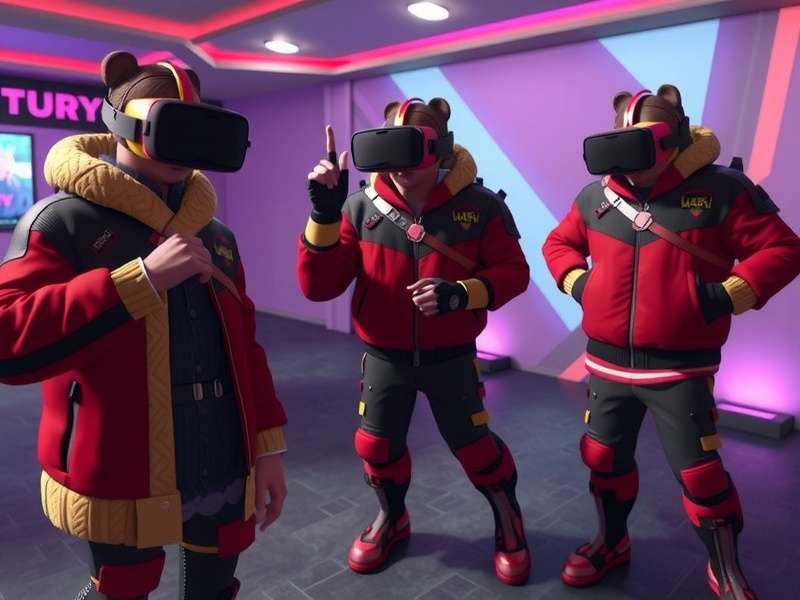
If you want to dig into the nitty-gritty of in-game avatar discovery tooling, check out Avatar Search Vrchat — it showcases sorting by platforms and performance, so you can see which settings the best avatars use.
8️⃣ Troubleshooting Common Avatar Creation Hell
8.1. Avatar Looks Hunched or Flying?
This is almost always a root motion or scale issue. Make sure your root bone’s transform is not zeroed-out. The avatar’s root origin should be between the feet, not at the pelvis. If the avatar appears to sink into the floor, set the anchor to skin width and adjust the avatar’s height. In Unity, set the mapping for hips correctly.
8.2. Lips / Eyes Not Working
- Missing viseme blend shapes? Check the blend shape index mapping in the VRCAvatarDescriptor → LipSync.
- For eye tracking: assign Left Eye, Right Eye, and apply “Look At” blendshapes. Make sure they are “skinnedMeshRenderer”.
8.3. Shaders Pink/Magenta On Quest
You used a PC-only shader on a Quest-compatible model. The fix: switch to one of the safe shaders: VRChat Mobile Toon Lite, Mobile Bumped Specular, or similar. If you’re using Vrchat Mobile Toon Lite Shaders, be sure to add the shader inside the VRChat SDK's shader whitelist for Android builds.
8.4. Animator Override Problems
When remapping animations, ensure you don't have duplicate parameter names with conflicting types. This is VRChat’s “No virtual parameter” issue. Delete old avatar descriptor and animator controller references; then rebuild.
8.5. Upload Failing or Stuck at “Preparing Avatar”
Disable your firewall, log out and back in, and close any streaming apps. Also check that your texture assets are not in the StreamingAssets per project. If you are using a client with mods, some anti-cheat blocks upload — use Vrchat Client only from the official version for troubleshooting.
Also, the classic: Missing VRChat SDK “VRChatAvatarDescriptor” component. Add it to the root object. No descriptor = nothing to upload.
8.6. When It’s Just Not Working: Community & Resources
You’re not alone; there are communities dedicated to helping new creators. Search for “VRChat Creator” groups on Discords, forums, and Reddit. Many creators keep an updated list of tutorials on their Vrchat Homepage with useful notes. You can also find avatar bases, inspiration, and unique items on Ripperstore Vrchat (with caution) or directly from talented creators like Jinxy Vrchat.
9️⃣ Showcasing Your Avatar & Community Culture
Once your avatar is done, the real VRChat game begins. You want to hop into worlds, hang out, take cute photos, and maybe even grow a reputation. But first: where do people find your avatar if they want to know how you made it? Many creators centralize their showcases on their Vrchat Homepage or use in-game search tools. If you're looking to discover new avatars, don't forget to use Vrchat Avatar Search — the most comprehensive directories allow filtering by tags, model type, and Quest compatibility.
Another huge part of VRChat culture is cosplay and fan homage. You might want to create a Homestuck-inspired avatar with eerie god-tier outfits; then you’ll likely land on Vrchat Homestuck communities that have exactly that vibe. And yes, we all know that VRChat has a weird, sometimes horny underbelly. A lot of people search for Vrchat Erp and Vrchat Hentai things — I'm not here to judge but note that many public worlds push the envelope. Keep your avatar legal, well-moderated, and remember your digital footprint. Your creation can become a beloved part of the VRChat ecosystem.
It’s also increasingly common to make a home world that complements your avatar. Want to build a fully playable world? Then you should check out this guide: How To Make A Home In Vrchat. A custom home plus a custom avatar is the ultimate flex in the social VR stratosphere.
10️⃣ Frequently Asked Questions
Q1: Do I need to know programming to make VRChat avatars?
Not fundamentally, but some Boolean logic and understanding of state machines help a ton. The animator controller is a visual state machine; if you have basic knowledge of conditions and transitions, you’re good. No heavy coding needed.
Q2: Can I use paid assets in my VRChat avatar?
Yes, but respect licenses. Some asset stores prohibit redistribution or uploading modified versions. Always read the EULA. Even for “free” assets, credit the original artist if possible.
Q3: How long does it take to make a VRChat avatar for the first time?
If you have no experience with Unity and Blender, plan for 1 to 3 weeks, averaging a few hours per day. If you already have a base model and only want a quick avatar upload, you can do it in about an hour. But like everything, the first one is always an educational disaster.
Q4: What is the best shader for an anime-style VRChat avatar?
For PC, Poiyomi Toon Shader is the community darling. For Quest, VRChat Mobile Toon Lite or VRChat/Mobile/Toon. Both let you create stunning stylized characters while staying performance-friendly.
Q5: Can I upload a VRChat avatar on Mac?
Yes. You can use Unity on Mac with an Intel or Apple Silicon chip. Make sure you install the right Unity version. For more specifics, check Vrchat Creator Companion Mac — there are a couple of caveats with Metal and shader compilation, but it works.
Q6: How do I make my avatar Quest-compatible?
Open the VRChat Control Panel, select your avatar, and look at the platform target. Switch to Android / Quest. Then optimize your avatar: reduce polys, combine materials, remove such shaders, and stay within very good rank.
Q7: Why does my avatar not show in search results?
For public avatars, your VRChat profile is indexed by world/avatar search engines. It can take a while. Also, do not use assets with prohibited tags. Some shader setups disable avatar searchability. You can find an index of publicly available avatars on Avatar Search Vrchat.
🎓 Final Words: The Next Level of Avatar Creation
There’s no single pill for becoming an avatar master. It takes iteration, failure, laughter, and the feeling of awe when you see your avatar move in VR for the first time. Remember: “How To Make Vrchat Avatars” isn’t a one-time tutorial — it’s an ever-evolving craft. New constraints, better shaders, and community mods constantly move the goalpost. But the fundamentals remain the same: a well-rigged model, smart textures, sensible performance ranks, and an expressive digital soul.
Focus on quality of life interaction, not raw polygon count. Make people want to see your avatar again. And don't be shy about using avatar search and home world references to see what the best creators do. You can also use the Vrchat Client to test your avatar in various worlds and lighting conditions.
One More Thing: If you make a super cool avatar and share it online, feel free to include a link in the comments. We always love to see new original work! 👇
“I learned more by taking apart other people’s projects than from any tutorial. Get your hands dirty in Unity and inspect every animator layer. That’s how you truly understand how to make VRChat avatars that work flawlessly.” — D.Melo, Avatar Creator since 2019
Leave a Comment